How to add/edit/find articles about Jibe and Unity3d on the ReactionGrid wiki

At ReactionGrid, we have a Community Virtual World Wiki that anyone can use to find information or add their own content.

In a recent discussion on our Jibe-Unity3d Google Group, some folks were interested in organizing and sharing information they’ve learned on how to get started with Jibe and Unity3d.

Our Google Group is the best place to have ongoing discussions and share ideas about Jibe, but the right tool for the job of organizing content is definitely our Wiki.

So here’s a crash course on how to use it!

Continue reading

Making the Most of Meeting in the Physical World: Evocative Artifacts

MIT’s Technology Review recently published an article on how CardCloud Spells the End of Physical Business Cards.

As someone who spends most of their professional life immersed in the online world, I tend to agree that physical business cards are not an ideal tool for information exchange in the physical world.

But I have a slightly different idea about why I feel that’s the case.

Continue reading

How to create a “flying camera tour” in Jibe and Unity3d

Here at ReactionGrid, we love it when people ask us questions about Jibe (our multiuser virtual world platform based on Unity3d).  Jibe is a rapidly evolving platform, and the most innovative ideas for both using and improving Jibe always come directly from our users.  Which is why we encourage everyone to submit questions and new feature ideas via the ticket system on our support portal.

Today I saw a ticket from a new Jibe user asking if it was possible to create a flying camera tour in their Jibe world. They wanted people to be able to click something and have their avatar’s camera fly around on a predefined tour path through their Jibe world.

We include in our Jibe platform a Presentation Screen System that lets people automatically set their camera view when they sit down to watch a slideshow or video presentation.  And with a few tweaks, you can use the scripts from this system to easily create a flying camera tour experience.

Here’s how to do it.

Continue reading

The Riddle of the Sphinx: Using Google Warehouse models in Jibe and Unity3d

Google Warehouse is a fantastic resource for free 3d models.  And it’s especially fun to hunt for models of beautiful historical landmarks that you can pull into your own multiuser virtual world.

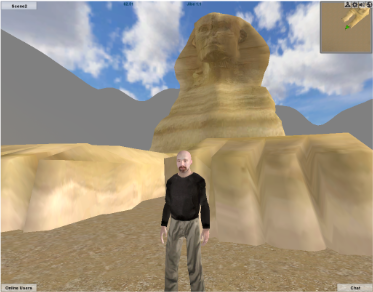
Today we’re going to bring a model of the Great Sphinx of Giza from Google Warehouse into a multiuser Jibe world using Unity3d.  And we’ll script the Sphinx so it asks a riddle when any avatar walks up to it.

Continue reading

Interactivity in Virtual Worlds: Using Triggers in Jibe and Unity3d

The physical world around us is responsive to our presence.

The same experience can be recreated in virtual worlds.

You just have to learn a few new tricks.

Those of us designing virtual worlds want to make them as engaging and interesting as possible.  There are many different ways to accomplish this goal.  You can start by creating a visually interesting space.  Make it beautiful to look at.  Fill it with things that move and look alive.  Encourage exploration by rewarding people with fun things to discover.  And never forget the power of sounds.

All of these methods will help you design a virtual space that is engaging to visitors.  But at some point you’ll realize that you want to build a world that is responsive to the people who are exploring it.

Looking and listening is fun.  Interactivity is even better.

Continue reading

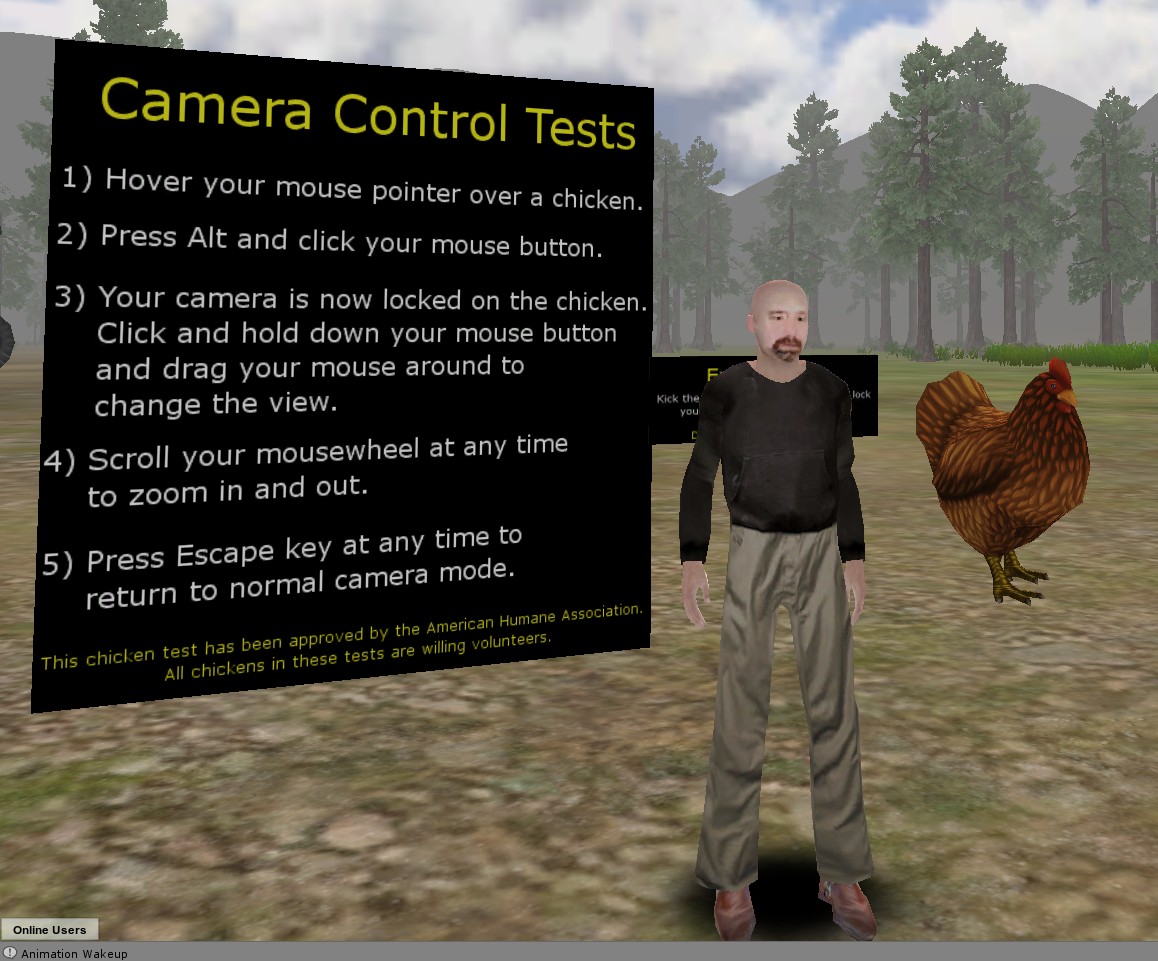
Jibe 1.1: Test our new camera controls at my chicken testing facility.

Jibe 1.1 is now being rolled out!  Here’s more info on what’s new.

We’re very excited about the update.  In addition to some other new features and lots of bugfixes, we’ve expanded how the camera works in Jibe.

To try out our new camera controls, just visit my Jibe world and look for the big sign and big chickens set up near the default landing area.

No chickens are being harmed in this test. I swear.

The chickens are all making chickeny sounds, and you’ll be able to hear them more clearly as you zoom your camera in on them (your “ears” are attached to your camera).

Please send us a ticket if you have any feedback or notice any bugs.  And for more info about camera controls, be sure to read this page on our wiki.

Thanks, and have fun!

-John “Pathfinder” Lester

Collaborating using web-based tools with Jibe: Animations and iTween

I recently wrote about some of the affordances of having a multiuser virtual world displayed in a webpage.  To illustrate this, here’s an example:

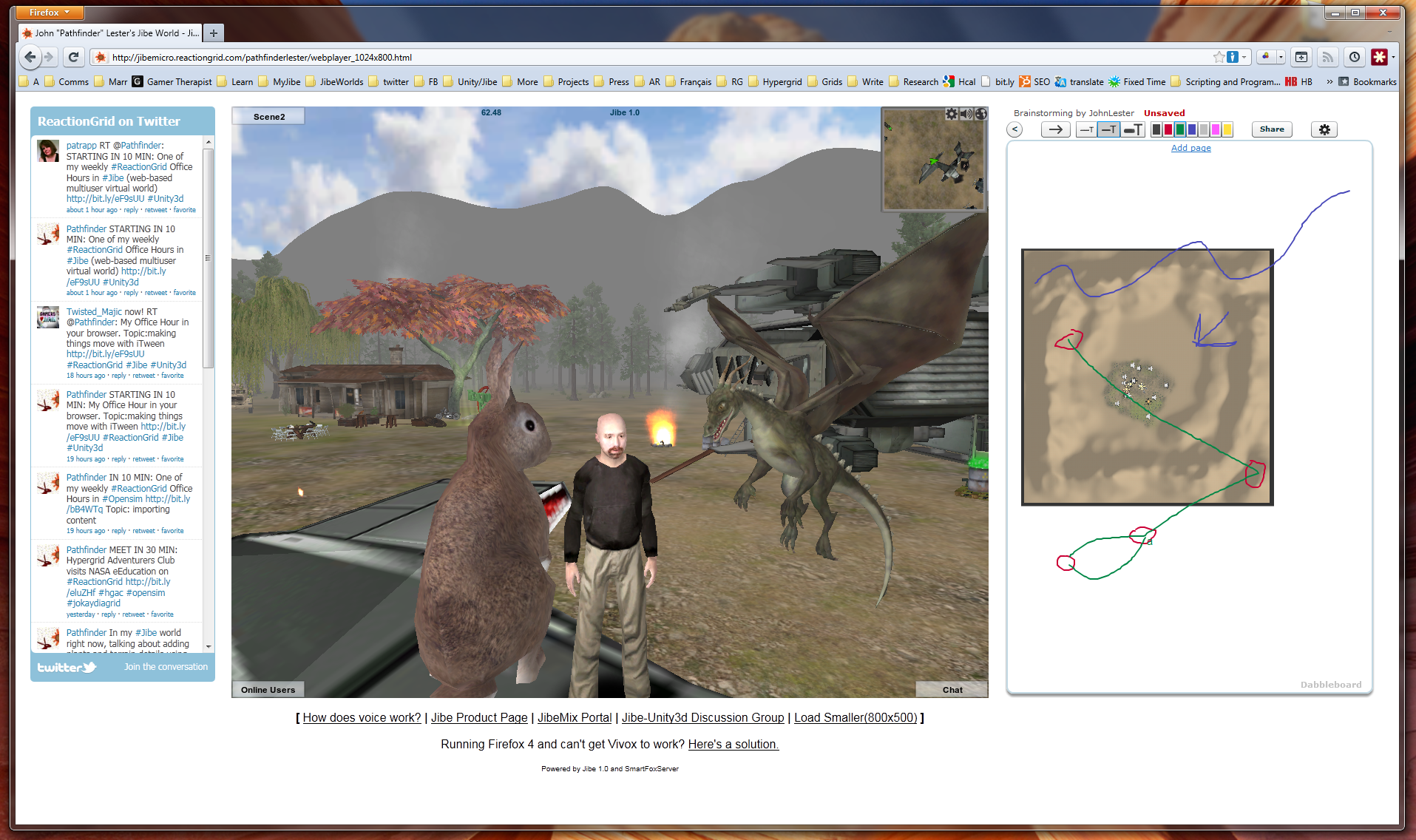
Left to Right: Twitter + Jibe + Dabbleboard

A multiuser Jibe world can be embedded in any webpage.  So what you see in the above screenshot is a webpage that has a Twitter widget on the left, my Jibe world in the middle, and a shared Dabbleboard on the right.  If you’re wondering how I did this, you can simply visit my Jibe page and take a peek at the HTML source.  Pretty simple stuff.

I’ve just started learning how to use a great tool called iTween.  It’s a powerful and easy to use animation system for Unity created by Bob Berkebile, and you can pick it up for free in the Unity Asset Store.  I’ve also been using another free Unity tool called the iTween Visual Editor, created by David Koontz.

These tools allow you to animate and move anything in the Unity editor, which can then be uploaded into a multiuser Jibe world. You create waypoints in the virtual environment and can see lines connecting each waypoint so you can easily visualize the exact path that an object will move along.

I’m a total newbie at all of this, so I love meeting people to discuss ideas and brainstorm.  Recently, I was in my Jibe world and wanted to show someone else my ideas for different pathways I was planning to lay out for my flying dragons.  We walked around my Jibe world together, checking out what I had already set up while talking on voice.

Then I had an idea.  I pulled up an aerial screenshot of my Jibe world’s terrain.  Dropped it into the Dabbleboard.  Drew some lines on it to show my plans for some new pathways.  The person I was meeting with then added some lines and waypoints of their own to the Dabbleboard to illustrate their own ideas.  You can see some of the results in the above screenshot.

Bingo.  Collaboration.

It was a great experience for me to be able to walk and talk with someone while we explored my Jibe world and simultaneously sketched out new ideas.  Really simple, and really powerful.  And a fun way to learn, too.

If you know of any other web-based tools that might integrate nicely on a webpage with Jibe, please let me know in the blog comments or join our conversations in our Jibe-Unity3d Google Group.  Thanks for sharing your ideas!

-John “Pathfinder” Lester

Why a Virtual World on a Webpage is Awesome

Is running a virtual world in a web browser really that big a deal?  If you have to download a browser plugin, then why not just download a standalone application?  What’s the point of having a virtual world sitting in a webpage?  Does it really make any difference?

I hear these questions a lot.  So let me share a few of my recent experiences with Jibe and setting up my own web-based Jibe world.

I need to get folks into my Jibe world quickly.
Ah right, it’s just a URL.

I can’t overstate how powerful it is to be able to give out a URL and tell folks “just click on it and you’ll be in my virtual world.”  And even though they have to download a Unity plugin to make it work, the whole process still happens within the web browser itself.

Think about how much time you spend each day in front of your web browser.  If you’re like most folks, a web browser is probably always open on your computer.  Which means that anything happening in your web browser is always right at hand.

And since my Jibe world is just a URL, I can make it something short and easy for me to remember.  Easy for me to quickly jot down on a piece of paper, too.  I just write or type bit.ly/Jibe_Pathfinder and that’s it.

I need to add links to useful info for people visiting my my Jibe world.
Oh wait, I can just add that as HTML inside the webpage where Jibe lives.

Since my Jibe world lives on a plain old webpage, I can easily add additional text and hyperlinks that appear around the Jibe world on the page.  Tweaking a web page like that is a snap, even for a web-wrangler like myself who uses a pretty basic HTML editor.

I want to use Google Moderator and Dabbleboard with people in Jibe.
Hold on, I can just embed them next to the Jibe world on the webpage.

Again, my Jibe world lives on a plain old webpage.  Which means I can use iframes to embed a useful web-based application and have everyone see it while they are inside my virtual world.  And there are a lot of great web-based collaborative tools out there.

Standing around in a 3d environment looking at 2d documents hanging on virtual walls has always left me scratching my head a bit.  Especially when those 2d documents need to be dynamic and collaborative.  Why not use the right tool for the right job?  Have the 2d content live on the webpage, and have the engaging 3d content in the 3d window.  That gives you the best of both worlds, and both can exist on the same webpage.

I need to track visitors to my Jibe world.  How do I script that inworld?
Oh duh.  I can just add Google Analytics to the webpage where Jibe lives.

Took me about an hour mulling things over before I suddenly realized this one.  A quick copy/paste of the Google Analytics javascript code into my web page, and I was done.

For those of us used to using virtual worlds as standalone applications, you can see how realizing the real power of a virtual world in a webpage requires unlearning some things.  You don’t need to do everything inside the 3d world itself.  You have the power of other web-based applications right there on the same page.

And I haven’t even touched on the more complex affordances of Jibe and the web.  Like being able to tie in preexisting web-based registration systems on the backend.  Or being able to integrate Jibe with a preexisting web-based content or learning management systems.

A virtual world on a webpage is awesome simply because the web is full of awesome tools.

And they can all work together.

-John “Pathfinder” Lester


Encouraging Exploration in Virtual Worlds: The Subtle Power of Sound (and chickens)

One of the most beautiful qualities of virtual worlds is that they are perceptually immersive.

By simulating environments that mirror reality, virtual worlds can evoke in us a surprisingly strong sense of place and space.  We feel like we’re “really there.”

But one thing that is sometimes overlooked in the design of virtual worlds is the fact that we perceive the world not just visually but also through our sense of hearing.

The ambient sound of wind and bird chatter in a forest.  The subtle creak of a wooden floor as we walk across a room.  The cracking of a fire in the distance.

Ambient and contextually relevant sounds can make any virtual world a much more immersive place.  We often don’t notice them consciously.  But when such sounds are absent, we usually feel like something is missing.

My primary interest in virtual worlds is immersive education.  Teaching through storytelling that naturally unfolds as a person explores the world around them.  Encouraging people to discover new things by creating environments that engage them.  And a big part of creating any immersive learning experience is making sure that it is perceptually immersive in as many ways as possible.

Rewarding Explorers

I’m currently spending a lot of time learning how to create multiuser virtual worlds on the web using Jibe and Unity3d.  I’ve been building out my own Jibe world and testing different ways to make it more engaging.

In my experience, the best way to encourage exploration in a virtual world is to simply reward people for exploring it.

I’ve been doing this by placing a few interesting little scenes to discover in my virtual world.  Some of them you will just stumble upon as you walk around.  But others call attention to themselves in subtle ways.

Visual cues, especially movements, are very useful ways to indicate “hey, come over here and check this out!”  But never forget the additional power of sounds.

What was that?  Did you hear something over there?

You may notice that I’ve got a lot of animals in my Jibe world.  This isn’t just because I like animals.  I’ve placed animals everywhere simply because animals both move and make sounds.  And those characteristics in a virtual world make it feel more alive.

Worlds that feel alive are worlds people love to spend time in and explore.

How to add sounds in Jibe and Unity3d

In Jibe and Unity3d, you can embed sound files in any object in the world.  These sounds sources exist in 3d, which means they can be perceived the same way we perceive sounds in the physical world.  Sounds get louder the closer you get to them.  And you hear things spatially when using stereo speakers or headphones.

You can learn all the details of how sounds work in Unity3d by checking out the Unity3d manual entry on sound. But here’s a quick crash course on how to add a basic looping sound to a specific object.

Crash Course in Sound Design: The Chicken

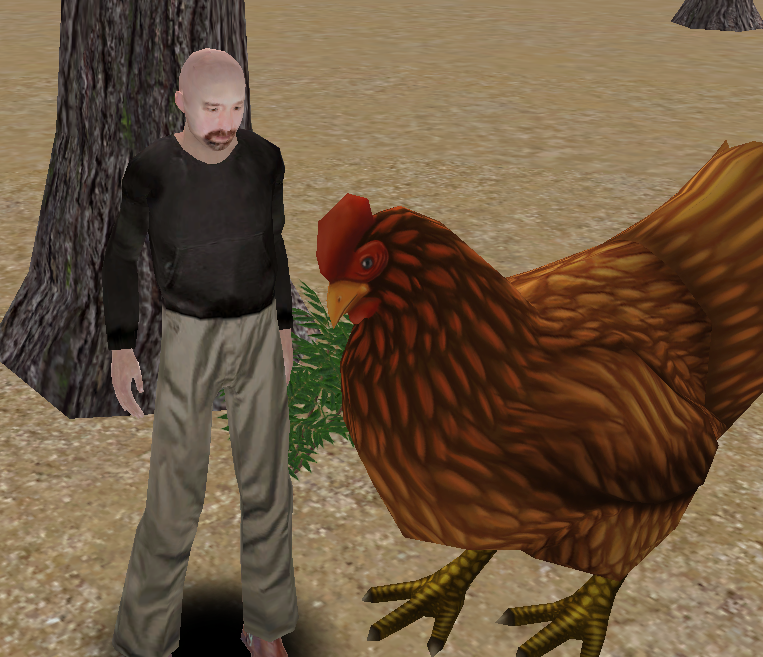
Chickens are awesome.  Visually, they move in very interesting ways.  And they make great sounds.  So I definitely wanted some chickens in my Jibe world.

1) Find a nice animated 3d model of a chicken.

I searched the Unity Asset Store but alas, no chickens.  However, I found a great animated chicken model for sale on the web.  I bought it, downloaded it, and placed it in my Jibe world using the Unity editor.
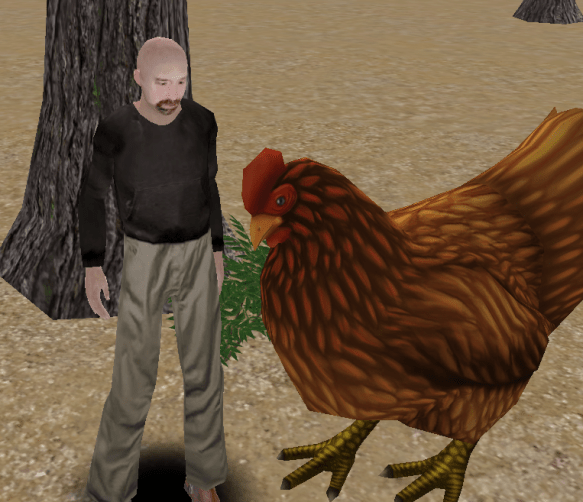
I made her super-sized because I wanted folks to easily see the model detail.  But my chicken lacked sounds.  Bummer.

2) Find a chicken sound.

If you’re looking for sounds that are free and Creative Commons licensed, I highly recommend checking out FreeSound.  I searched FreeSound for chicken sounds and found a nice WAV file of a chicken clucking.

Just one problem.  The sound file was too long and large.  Remember, when you are deploying a Jibe world, size matters.  The more you add to your world in the Unity editor, the slower your Jibe world will load on the web.  Remember this fact when you are adding sound files.  You’ll always want them to be as short and small as possible.

3) Edit the chicken sound.

I love Audacity.  It’s a free and open source program for recording and editing sound files.  So I opened up my chicken WAV file in Audacity and cut it down to a very short clip that looped nicely.  I also saved it in Ogg Vorbis format so it was compressed and as small as possible.

4) Get the chicken sound into my Jibe project file in Unity.

I opened up my Jibe project file in the Unity editor, went the Assets menu at the top of the screen, and chose Import New Asset.  Then I found my chicken sound on my hard drive and selected it.
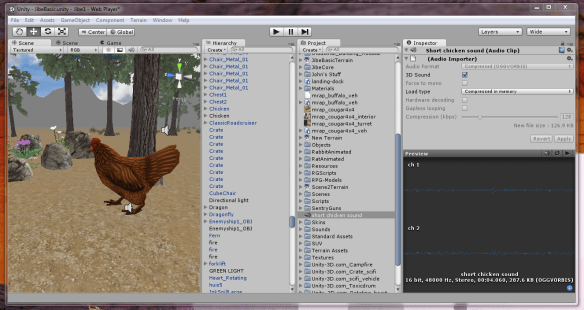
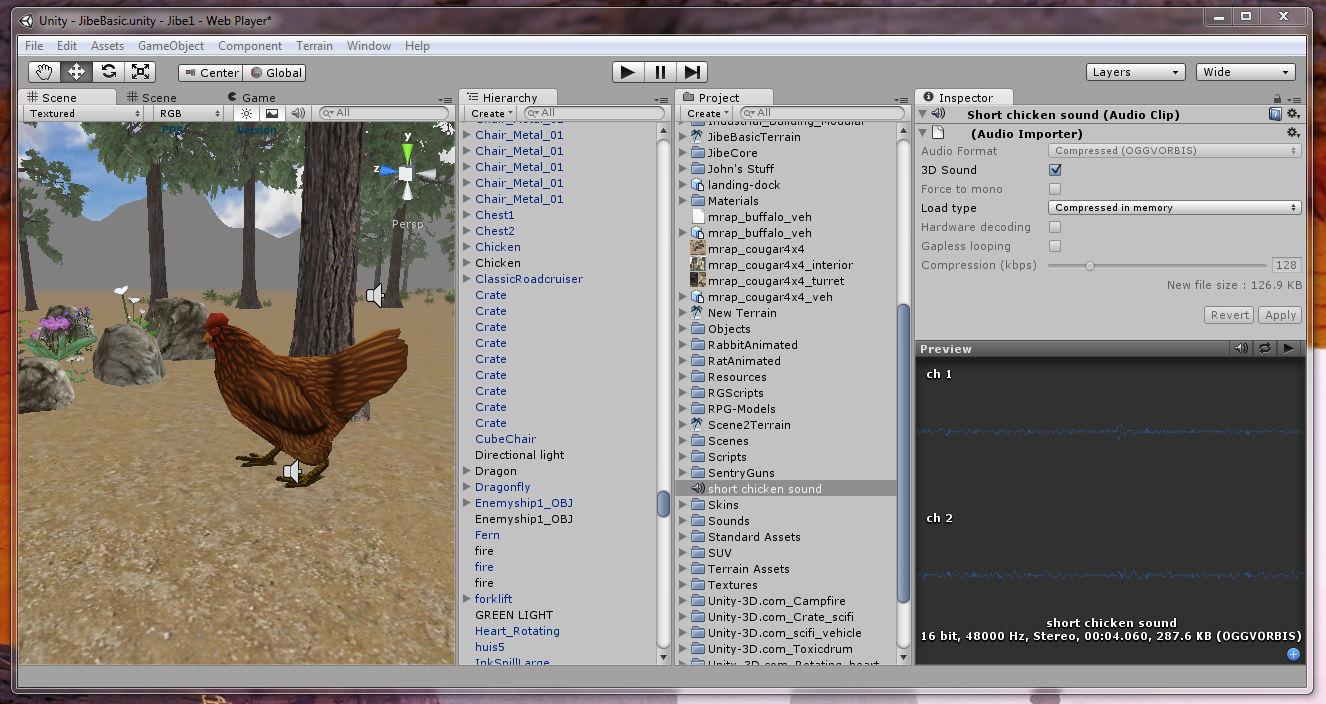
You can now see the short chicken sound file sitting in my Project folder, and the details of the sound file in the Inspector window.

5) Get the chicken sound into the chicken.

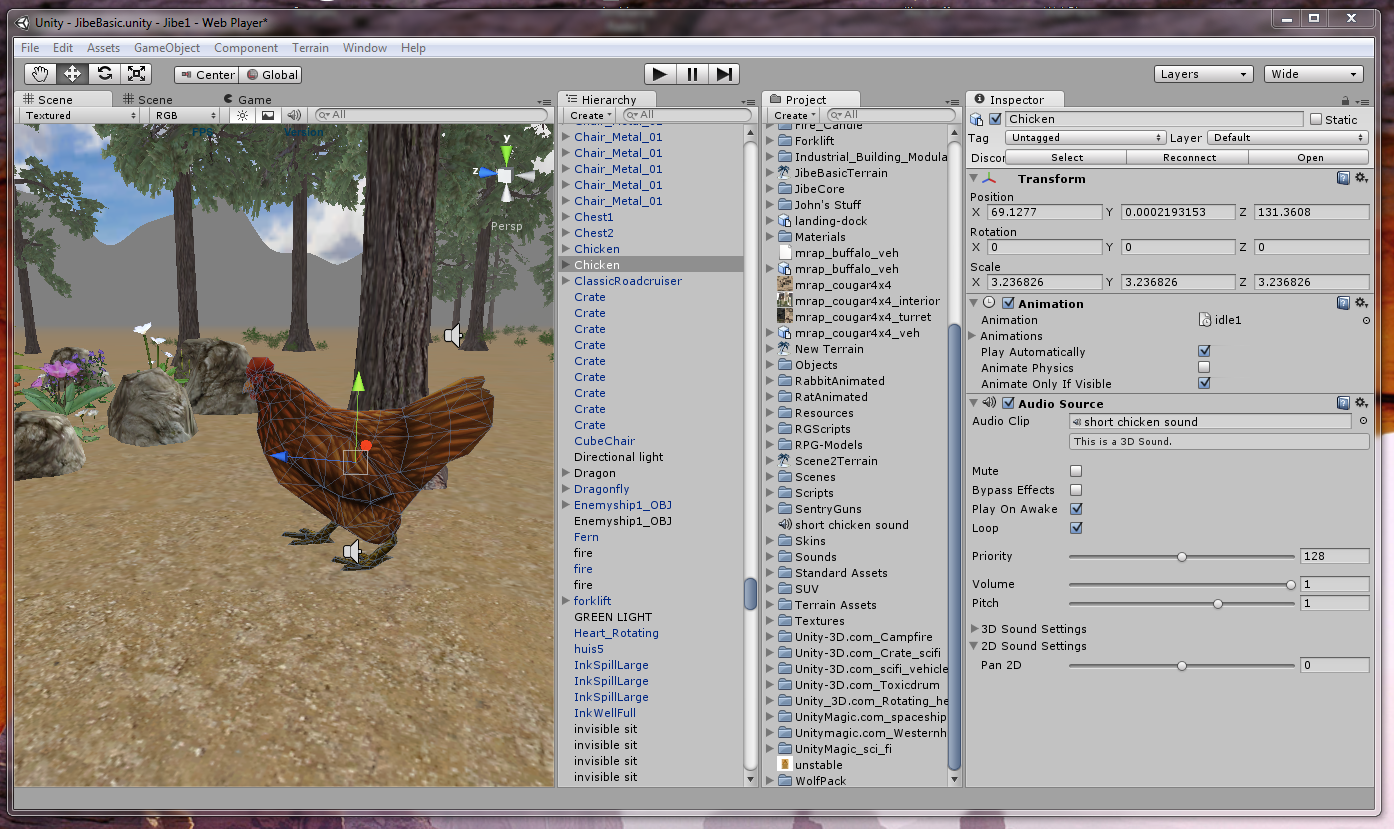
I dragged the short chicken sound file from the Project folder onto the chicken model in my Scene window.  Then I viewed the new details of the chicken model in the Inspector window.
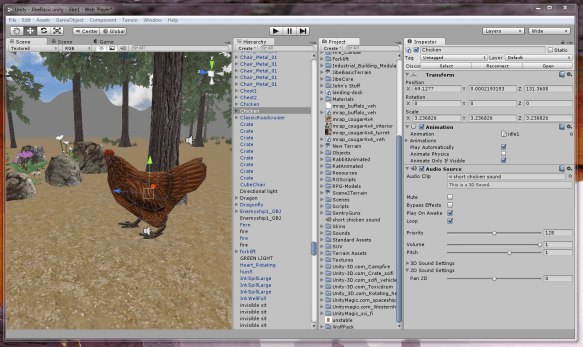
There’s the sound file in my chicken.  I turned on the loop function, and I was done.

6) Enjoy and learn more!

You can visit my chicken in my Jibe world on the web.  And if you’d like to join a community of people interested in creating virtual worlds using Jibe and Unity3d, please check out my Jibe and Unity3 Google Group.

If you are designing a virtual world, spend some time not only thinking about how it should look but also how it should sound.   Got a fire?  Make sure it has a nice crackling sound.  Building a train station?  Add ambient sounds of crowds and trains.  You’ll be giving your users a much richer experience.  And maybe you’ll learn some new tricks along the way.

-John “Pathfinder” Lester

How I Learned to Stop Worrying and Love the Unity Asset Store

It’s important for people to identify their own talents and cultivate them whenever possible.

And likewise, it’s important for people to realize where they lack talent.

Personally, I’m terrible at 3d content creation.

I’ve tried very hard to learn various 3d modeling programs in the past, and I continue to push myself at doing my best to use them.  But I’ve pretty much accepted the fact that, aside from being able to whip up the basics, I definitely lack the artistic talent and technical prowess to create beautifully detailed 3d models from scratch.  I’ll always be a hack.

But that’s OK.  I’ve stopped worrying about it.

Because the trick is to accept one’s limitations while finding ways to work around them.

My Best Friend in Jibe: The Unity3d Asset Store

I’ve recently been learning how to use Unity3d to create my own multiuser virtual world on the web with Jibe.  And I just started using the Unity Asset Store.

The Unity Asset Store is a place to buy things you can import and use in your own Unity3d projects.  Anyone can submit items to be sold, too.

Pretty neat, right?  Well, it gets much more interesting.

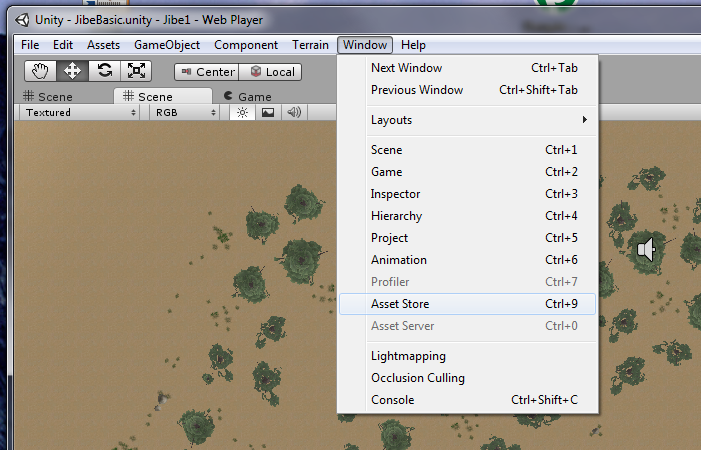
The clever folks at Unity decided to integrate the Asset Store with the Unity editor.

Hello, my friend!

So while you’re busily working on your world in the editor, you can simply pull up the Asset Store from the menu, search for something, buy it, and have it immediately dropped into your project file.  And if you lose or break something you previously bought, have no fear.  The Asset Store remembers that you bought it and can send it to you again whenever you like.

Of course, anyone can find 3d models for sale or freely available on many different websites.  I do that all the time, and it works great.  But it can sometimes get complicated depending on different import settings and optimizations.  With the Unity Asset Store, I’m guaranteed everything will work in Unity3d.  And the store is right there for me to access while I’m actively building my world, at the precise moment I need new content.

“Hmm.  I need wildlife in my Jibe world.  Like rabbits.”

“Oh look, there’s one in the Asset Store.”

“Done.”

I get excited about technology.  But I get even more excited when I find tools that have a very positive philosophy behind them.  The Unity Asset Store is a great example of how the folks at Unity are thinking very carefully about how to best empower people who want to create engaging 3d experiences.  Connect, integrate, and build communities where everyone can best leverage their unique talents.  That’s a great philosophy in my book.

Jibe + Unity3d = Sharing your World

At ReactionGrid, we like to think we too have a very positive philosophy.  We give people the tools to create and then share their virtual worlds with others.  Being able to easily publish your vision on the web is pretty amazing, and I’m having a great time putting myself in our customers’ shoes.  Learning by doing.

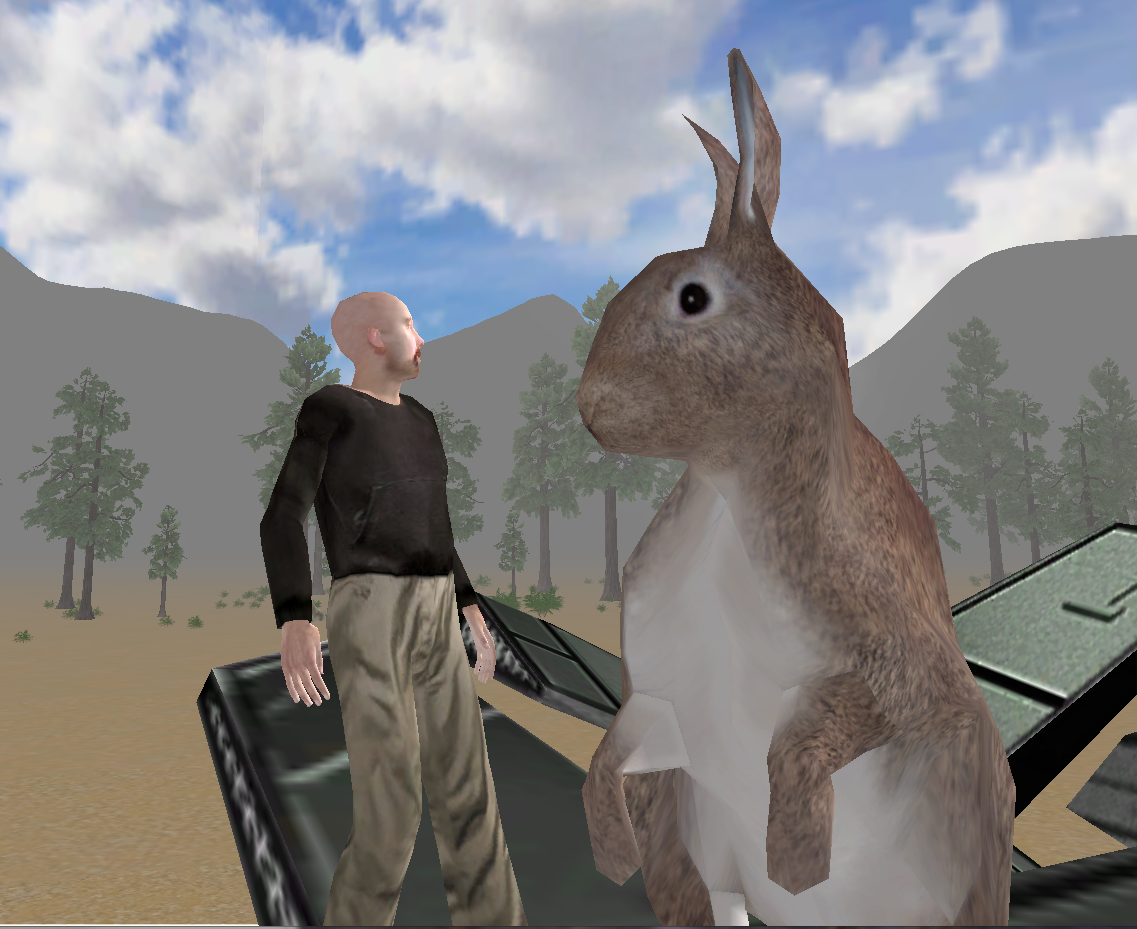
Visit my Jibe world and see if you can find my fully rigged and animated mesh models of rabbits, courtesy of the Unity Asset Store.  I’ll be using them and other animal models to tell a little story over time for folks exploring my Jibe world.

Creating fun and immersive learning experiences through storytelling is something I can do pretty well.  Thankfully, I don’t need to be a 3d model expert to create engaging  experiences in Jibe.

And guess what?  Neither do you.

Join our Jibe and Unity3d Discussion Group and learn how easy it is to get started!